Preparing the Microsoft environment
Building the foundation for device management
Checking Intune’s starting point, creating a controlled test group, and limiting automatic enrolment to that group. Device enrolment comes next.
Why Via Wash needs it
As Via Wash grows, the company will need a way to manage and protect the computers used by its employees. Someone working in Finance may handle sensitive financial information, while the IT team may need access to administrative tools. Not every employee should have the same access, and devices should not be brought under management without a clear plan.
Microsoft Intune gives administrators a central place to manage devices, apply settings and security policies, and check whether devices meet the requirements that have been set. Before testing those capabilities, I first needed to understand the state of the Intune environment.
Understanding the starting point
I opened the Microsoft Intune admin centre and reviewed the dashboard and device overview. The dashboard showed that no devices had been enrolled. It also reported no Intune enrolment failures in the previous seven days and no configuration policy errors or conflicts.
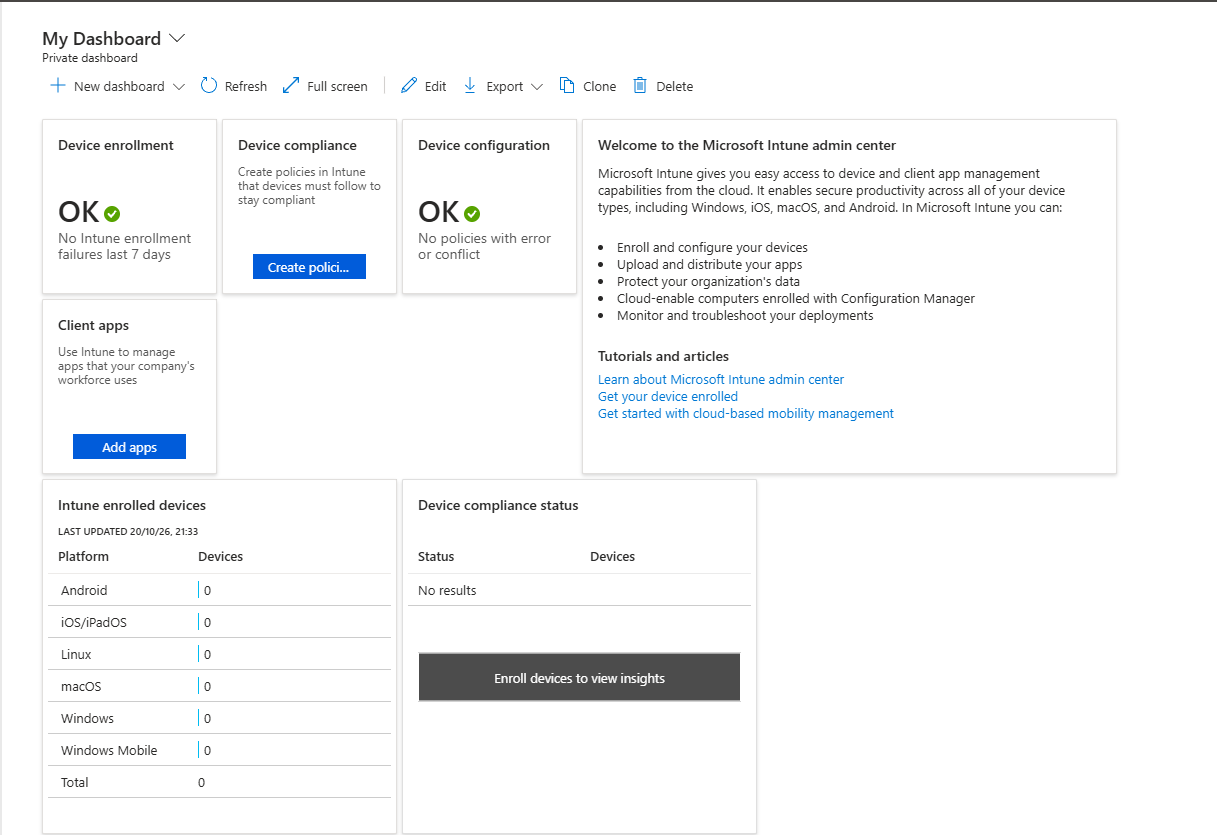
This gave me a clear starting point: Intune was accessible, but I had not yet demonstrated device enrolment or management.
Creating a controlled test group
Rather than enabling automatic enrolment for everyone in the tenant, I created a dedicated Microsoft Entra security group called VW-Intune-Test-Devices.
Despite its name, this group was used to select users for the MDM user scope. It is not a record of enrolled devices. The group gives me a specific target for the Intune test. It means I can control which users are included in the enrolment test instead of applying the scope to every user. I set the membership type to Assigned, so membership can be managed deliberately, and added my test account to the group.
Configuring automatic enrolment
Creating the group was only part of the work. Intune also needed to know which users should be included in automatic mobile device management (MDM) enrolment.
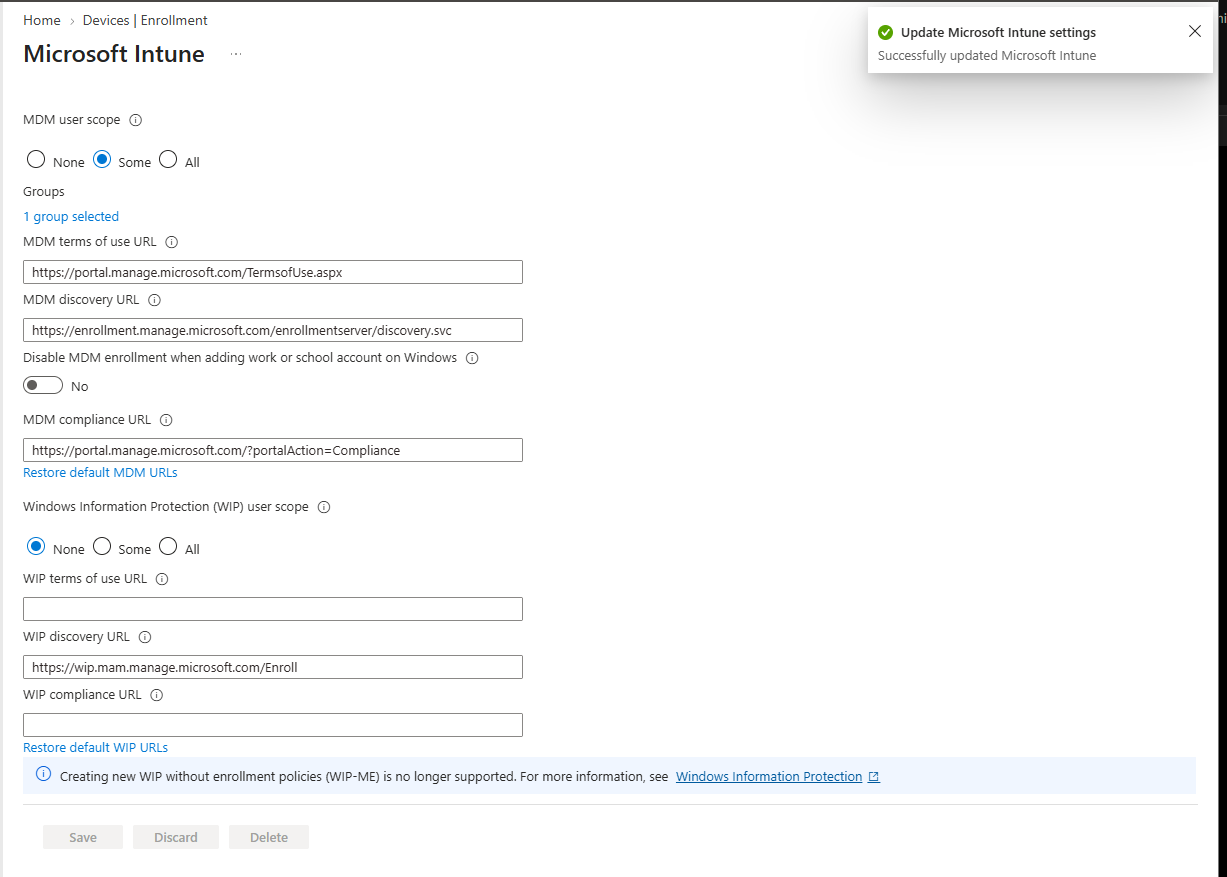
When I inspected the Automatic Enrolment settings, the MDM user scope was initially set to None. That meant no users were included through this scope. I changed it to Some and selected VW-Intune-Test-Devices, limiting the intended scope to that group rather than all users.
I left the Windows Information Protection (WIP) user scope set to None, because WIP is not part of this enrolment test. After saving, Microsoft Intune displayed a confirmation that the settings had been updated successfully.
Where the project stands
The initial Intune assessment, test-group creation, and Automatic Enrolment configuration are complete. The next stage is to check the suitability of a Windows test device and then determine the appropriate way to test enrolment.
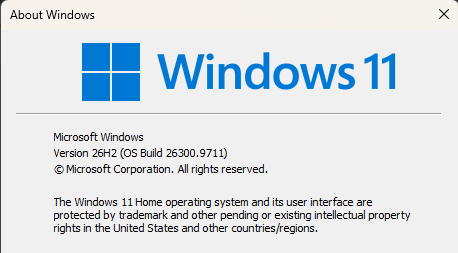
The computer recorded during preparation runs Windows 11 Home, version 26H2. I have recorded this as part of the preparation, but I have not yet enrolled the device. I will only describe enrolment as successful after Intune confirms that a suitable test device has enrolled and appears in the admin centre.
The saved scope is the result of this stage. The next check is a successful device enrolment, followed by a configuration policy and a compliance test. Those results have not been recorded yet.
The enrolment and policy work is next on the roadmap.