Building identity in Entra ID
Creating Sarah’s Via Wash account
Sarah is joining Operations as a Store Assistant at Stratford. I used that scenario to create her Entra account and check the resulting directory record.
Sarah joins the Stratford branch
When a new Store Assistant joins Via Wash, IT needs more than a name. The account has to identify the person and record the job and location that will shape their access.
I used Sarah Eze as a lab identity for this scenario: a Store Assistant working at London - Stratford Branch in Operations. This walkthrough covers the account itself. Access, authentication and device preparation follow as separate parts of her onboarding.
Choosing the sign-in and display names
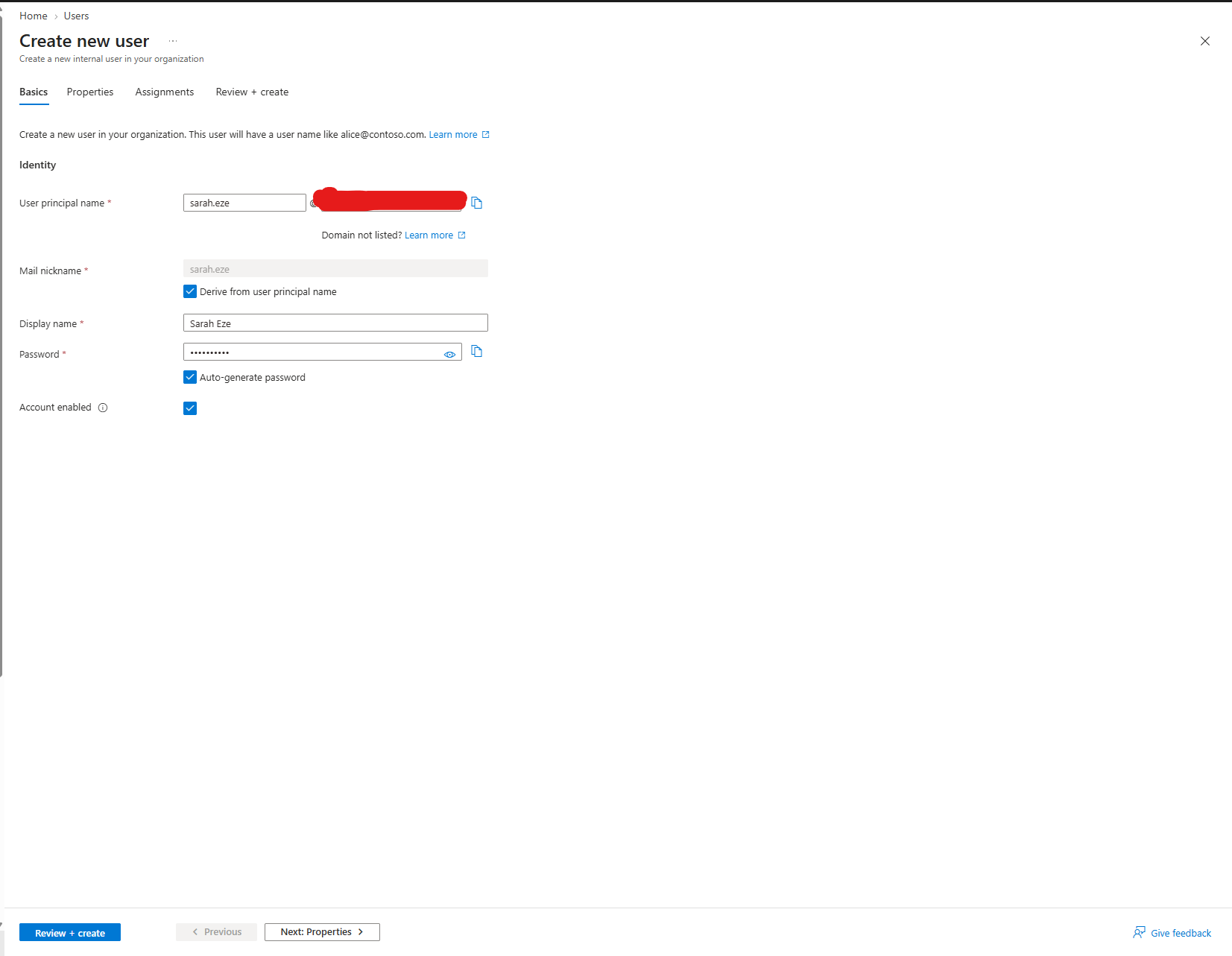
In Entra’s Create new user flow, I entered sarah.eze as the user principal name, or UPN, and Sarah Eze as the display name. The UPN is the sign-in identifier; the display name is what colleagues see.
I kept the mail nickname derived from the UPN, left the account enabled and used the auto-generated password option. The tenant part of the name is redacted and the password remains masked. Creating an email-shaped sign-in name does not create or verify a mailbox.
Recording her place in Via Wash
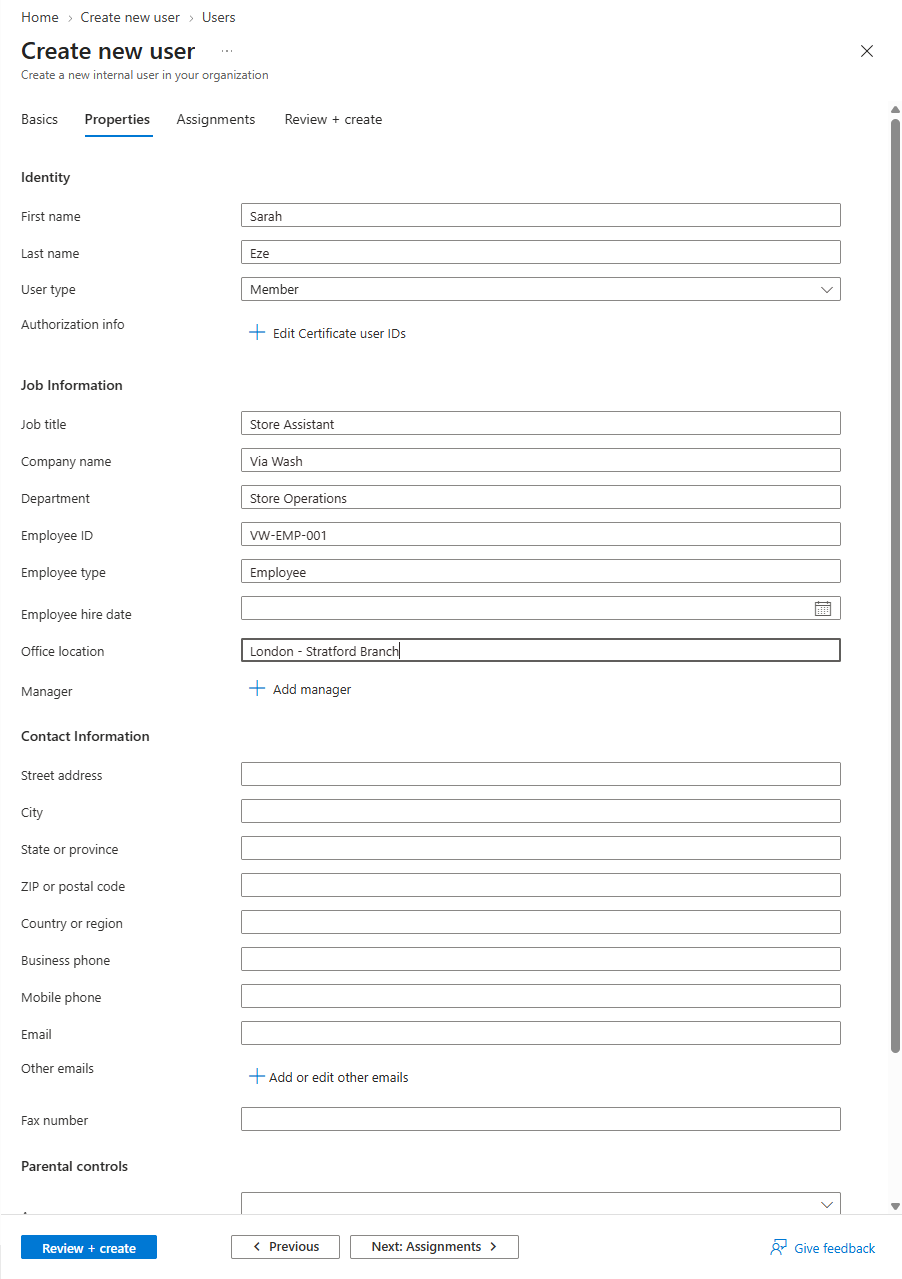
On Properties, I selected Member because Sarah represents an employee within the organisation. I entered Store Assistant as the job title, Via Wash as the company, Employee as the employee type and VW-EMP-001 as the test employee ID.
I put London - Stratford Branch in Office location. Sarah belongs to Operations wherever she works; the branch describes her location. I left the manager and hire date blank because those details had not been established.
The capture also records a mistake: I entered Store Operations in the Department field. The department name in the business model is Operations. That value still needs a documented correction before it is used in a department-based membership rule.
Keeping access as a separate decision
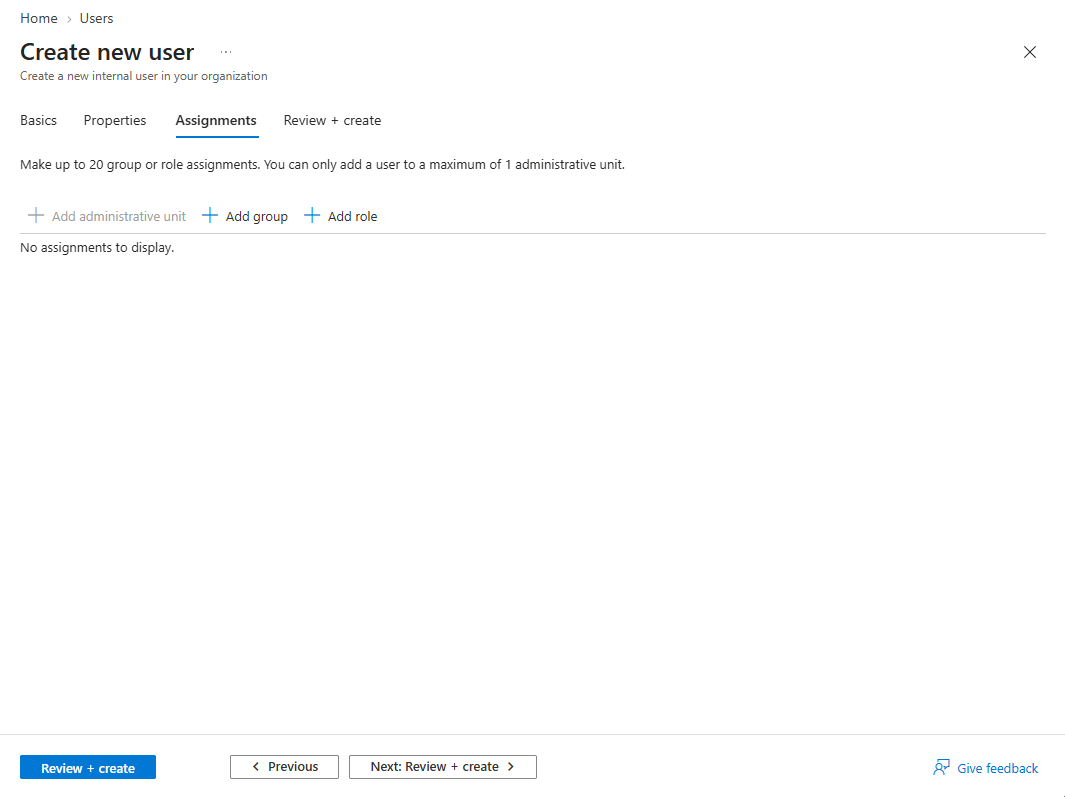
The Assignments tab offered group, directory-role and administrative-unit assignments. I left them empty for this account creation.
A Store Assistant should receive access appropriate to that job, so there needs to be a decision about the required resources before an access group is assigned. Department and job title can inform a membership rule later, but entering those values alone does not grant access.
Checking that Entra created the account
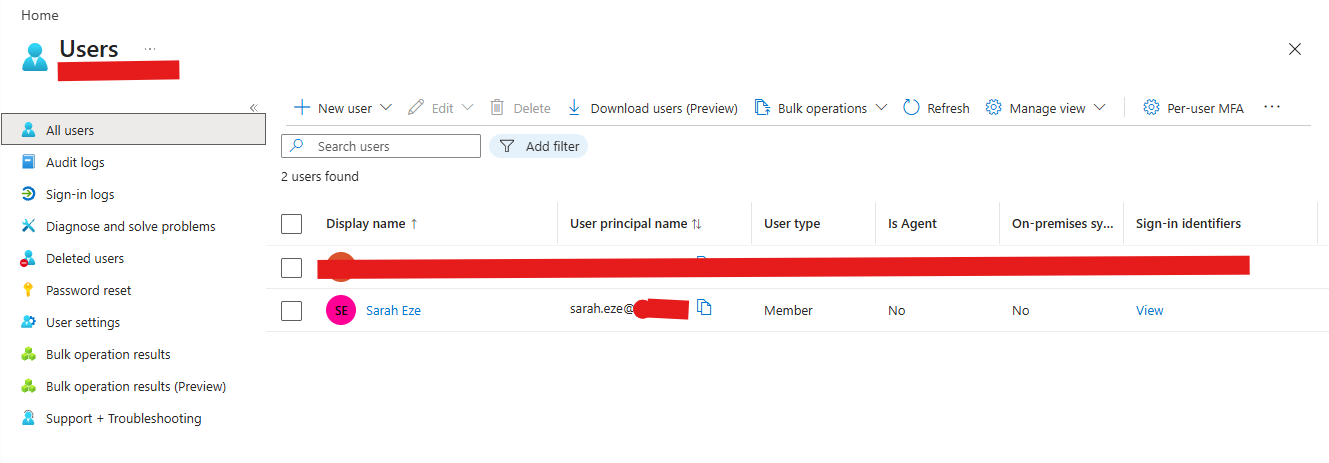
I reviewed the details, selected Create and received Entra’s success notification. I then checked All users, where Sarah appeared as a Member.
View the review screen and creation confirmation
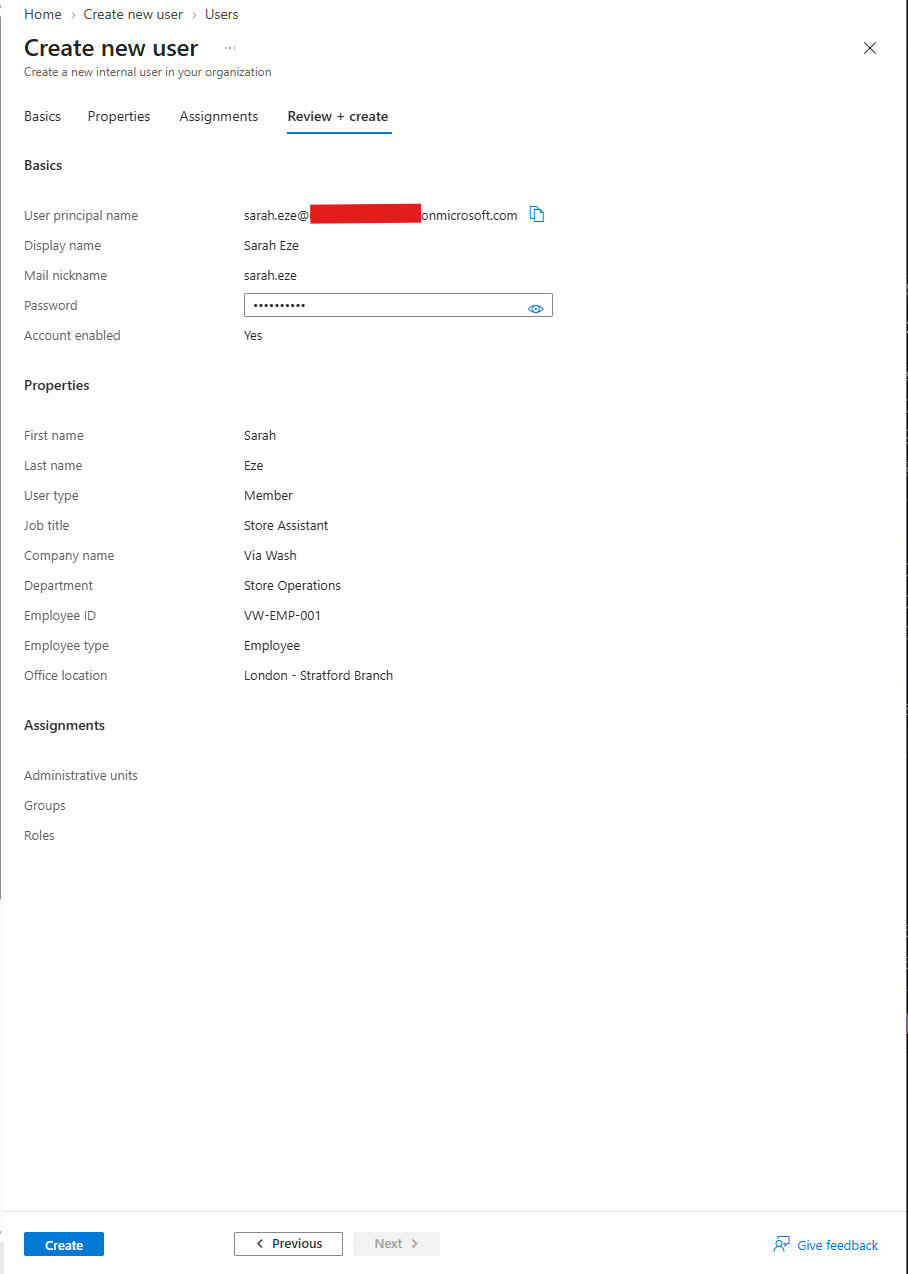

The result is an account in the directory. These captures do not establish a successful sign-in, application access, device enrolment or app installation; those checks belong to the next parts of the build.
What I’m carrying into the group work
The Department correction is one immediate action. Alongside it, I need to inspect the existing groups and decide what a Store Assistant should receive. An assigned membership test can be performed independently of a department rule; automatic membership will require consistent attributes and its own validation.
The next write-up will follow those decisions into configuration and testing when the work is recorded. The learning and build record keeps the learning progress and practical results together.
Learning references
The related Microsoft Learn units are Create a new user in Microsoft Entra ID and Secure Microsoft Entra groups. The user concepts have been discussed; a knowledge-check result has not been recorded.